

.webp)
LinkedIn company page: Relevance and Requirement
A LinkedIn company page can be created quite quickly and gives your company one thing in particular: visibility. To create it, you need a personal LinkedIn account. A profile without premium is completely sufficient. In this article, we'll show you how to create a company page step by step.
Introduction & our experience
A strong corporate presence on LinkedIn clearly shows what your brand stands for and ensures that you are found. It clearly positions your company, makes you discoverable for talents and decision makers and creates trust before the first contact is made.
Step 1: Log into your personal profile on LinkedIn
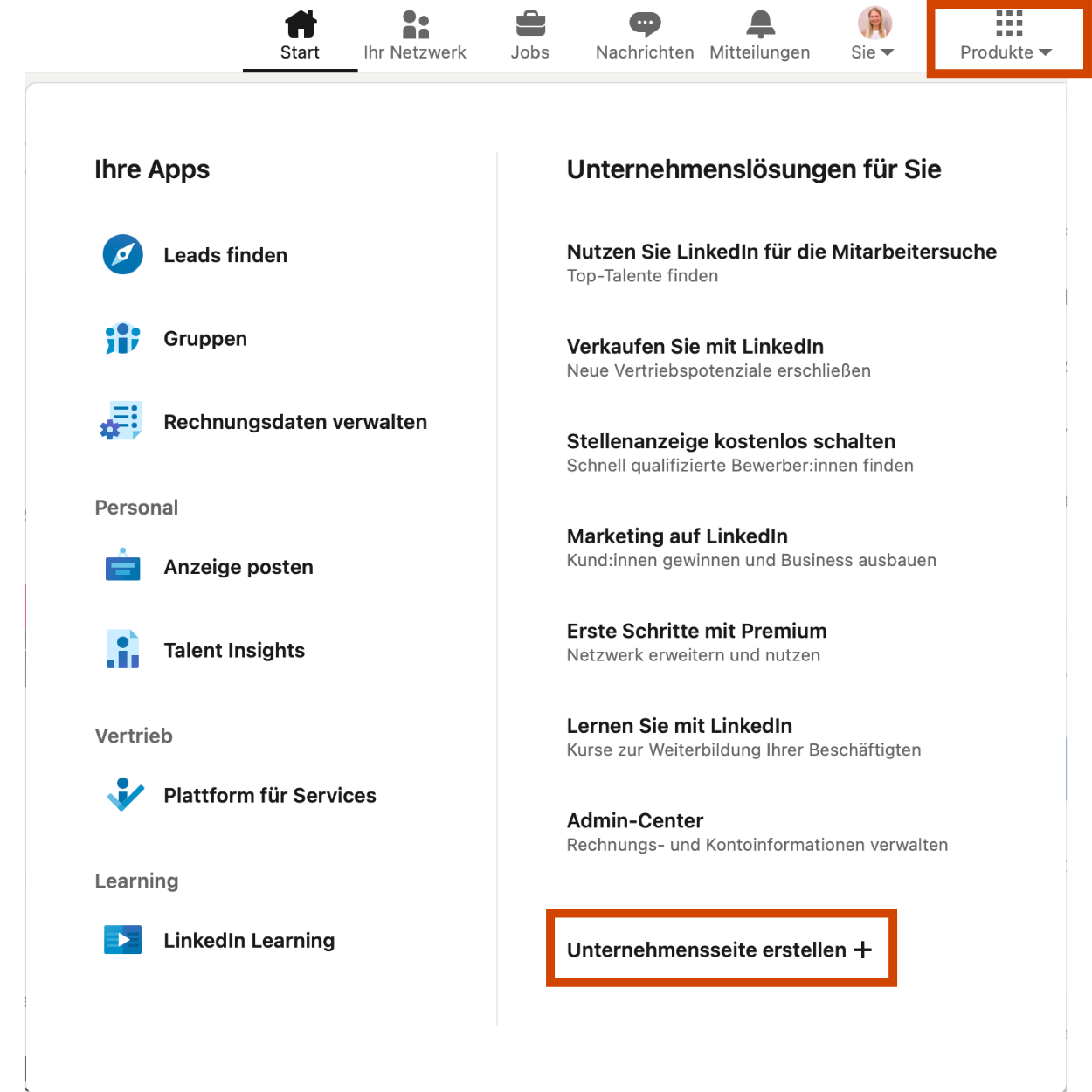
If you are logged in, you will find the “Products” button at the top right. When you click on it, you'll see the “Create a company page” field at the very bottom.
Step 2: Select your business type
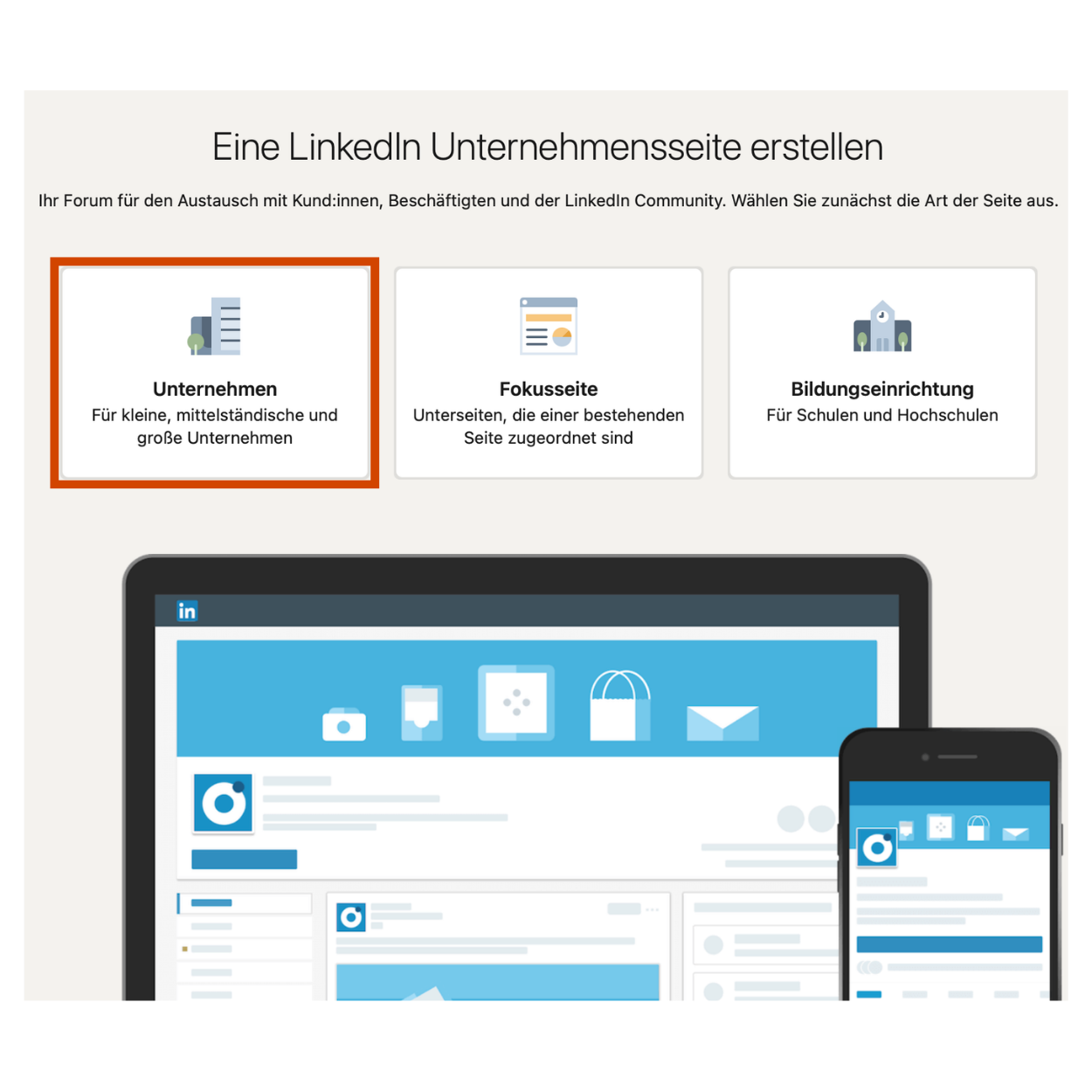
The next step is to choose the Your company page type. Usually this is the option on the left-hand side “company”.
Step 3: Update your company data
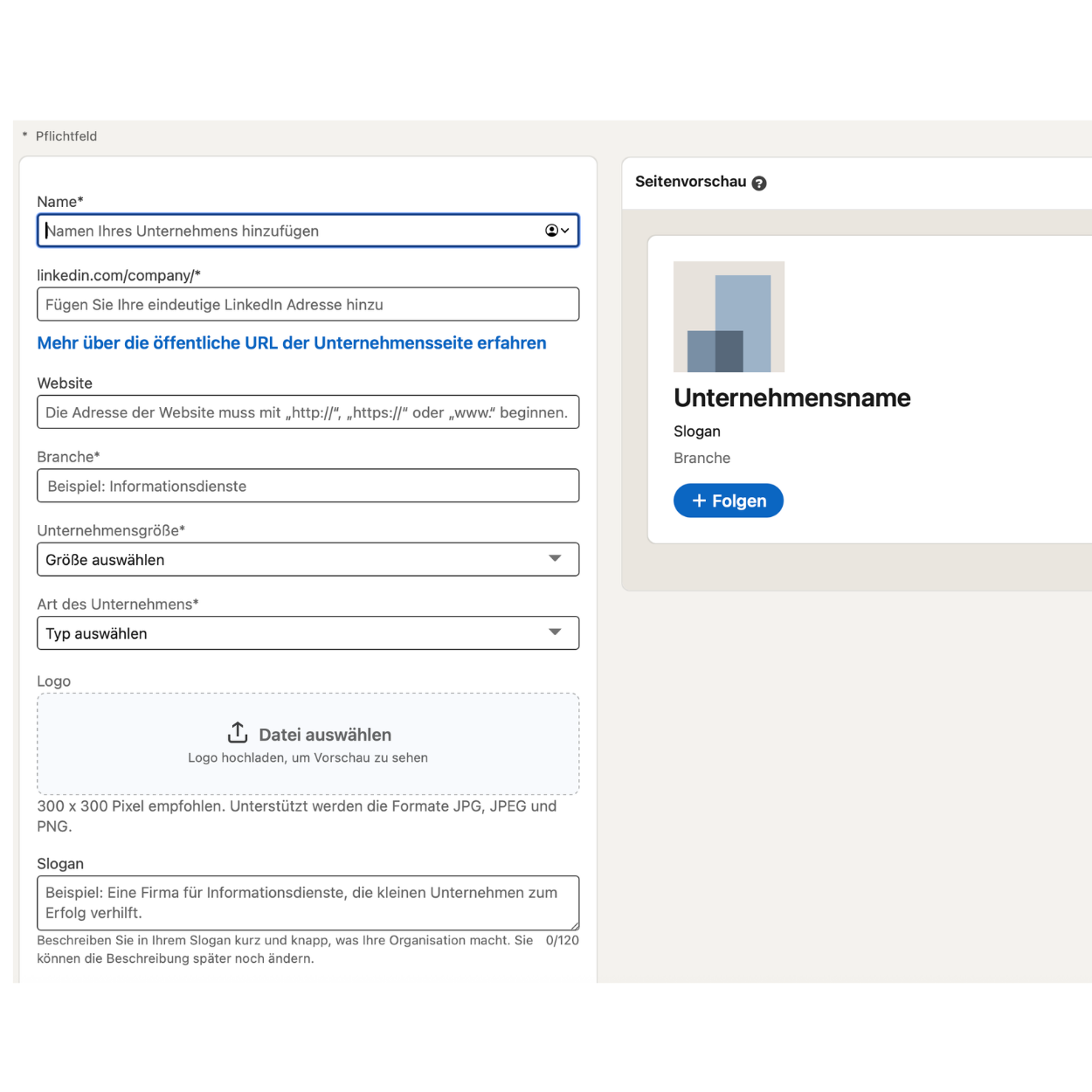
You then fill in all important company data such as name, LinkedIn URL, website URL, industry, company size, type of company and slogan.
Ideally, you should also upload your company logo as a profile picture. We also recommend that you create a Background banner and upload it immediately after the page has been created.
This makes your appearance look professional and complete right from the start.
Step 4: Your settings
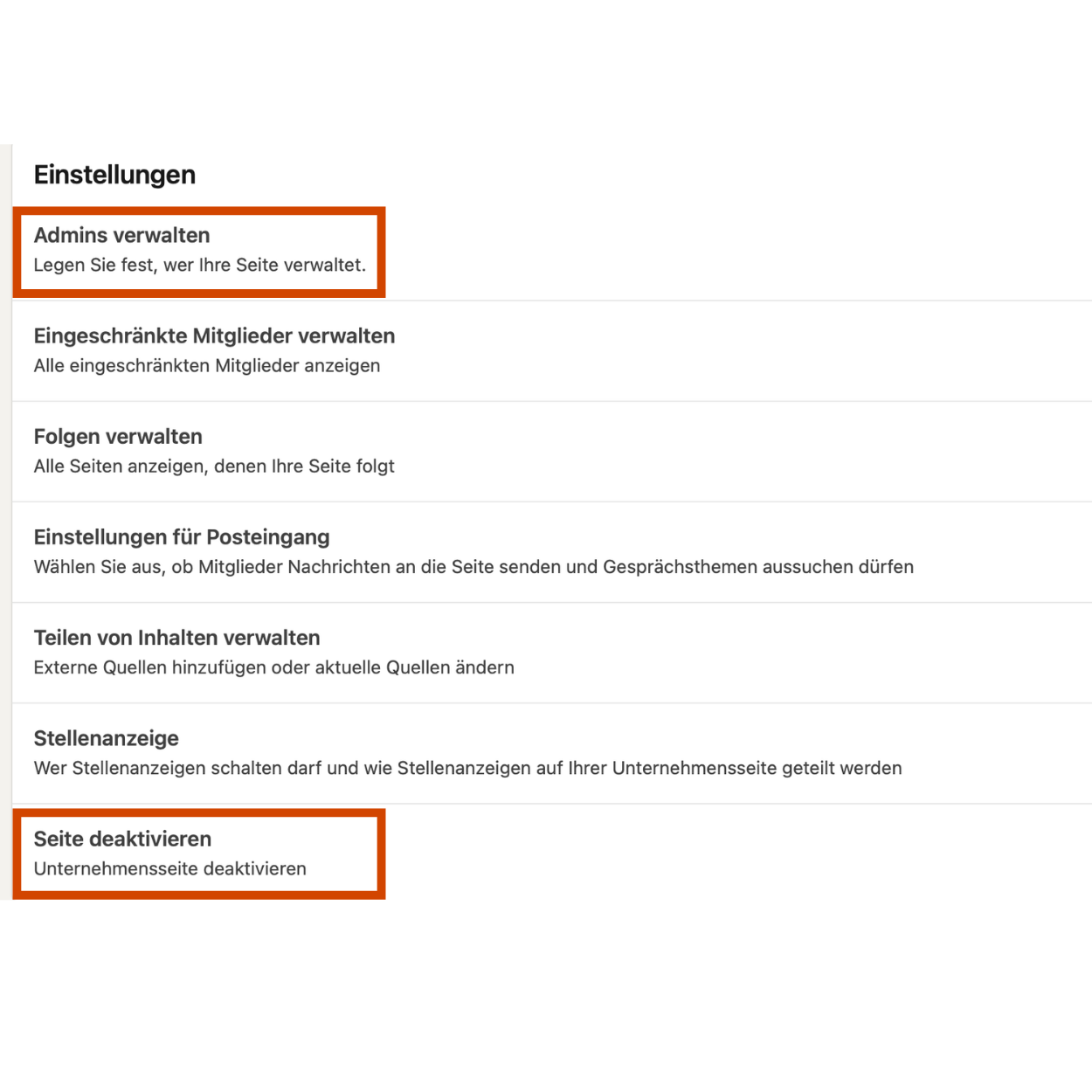
Under settings, you can add further information Supplement or additional admins. This is particularly useful if you want to manage the company site as a team.
Should you no longer need the company page at some point, you can also deactivate it there again.
Step 5: Final steps
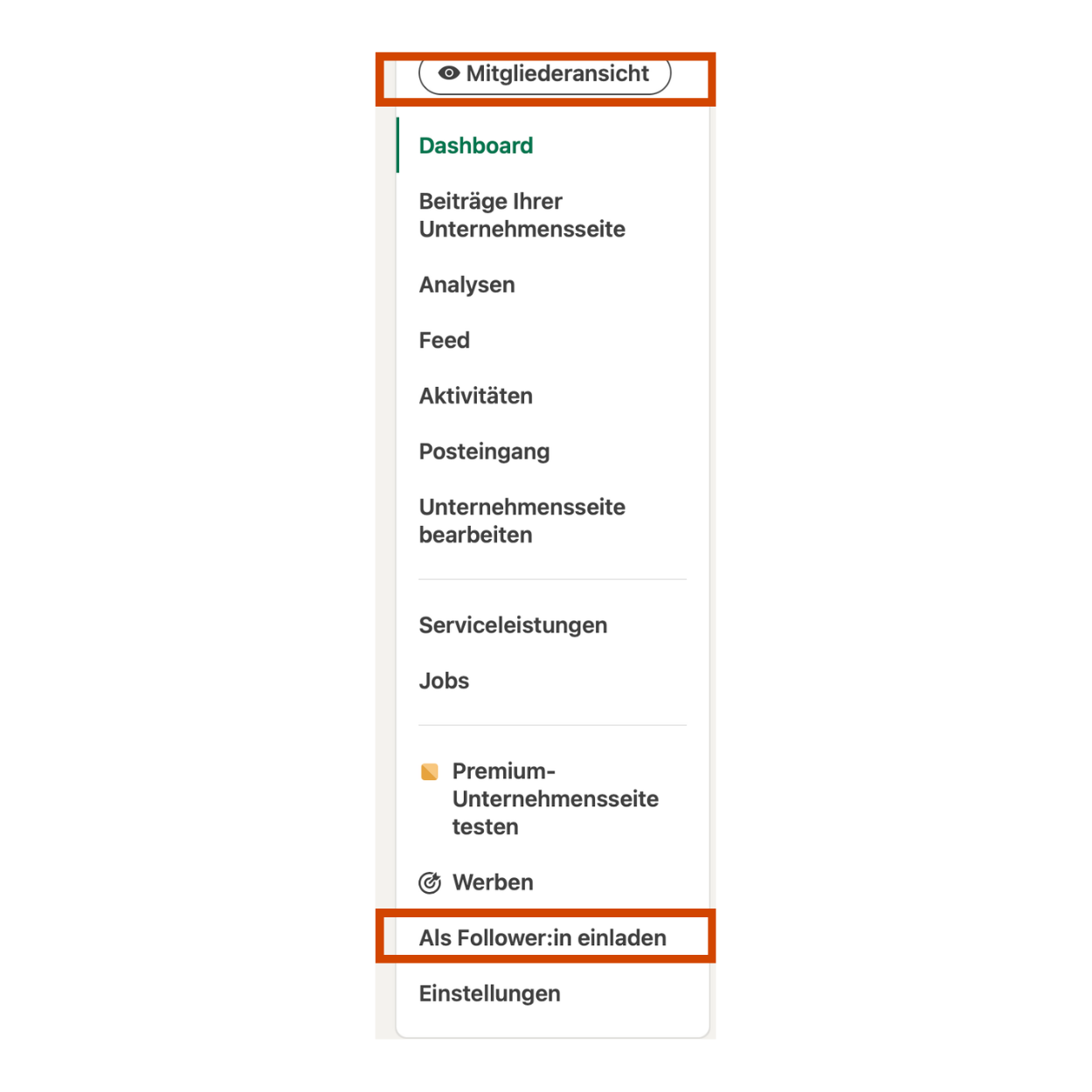
Finally, in the member view you can check how your company page looks to others and whether everything is displayed correctly.
A little tip to help your business site grow faster:
Actively invite your contacts as followers. Each month, you'll receive a quota of 250 invitations that you can send out to follow. We recommend that you make full use of this quota.
A few last words
At first, a company page on LinkedIn may look new. In the long term, however, it can give your company more visibility and therefore more leads as well as potential employees.
If you are not sure whether your presence is already optimally positioned or if there is still room for improvement, feel free to book a LinkedIn profile audit and get professional feedback.
About the author
Hightide, founded by Hendrik and Caro, is an agency that has set itself the task of helping startups and entrepreneurs gain more visibility. In doing so, we combine LinkedIn Marketing and strategic Website design as the two most important B2B channels. We are also happy to assist SMEs and other experts in the B2B sector on their journey.